







With over 1 billion monthly active users in 2026, Telegram has become one of the most powerful platforms for business communication. A well-built Telegram bot can deliver 24/7 customer support, qualify leads, accept payments, book appointments, and drive sales — all automatically and without hiring extra staff or writing any code.
Thanks to modern no-code platforms like MaviBot.ai, launching a professional Telegram chatbot is now fast, affordable, and accessible to businesses of any size. Most users complete a fully functional basic bot in just 15–20 minutes.
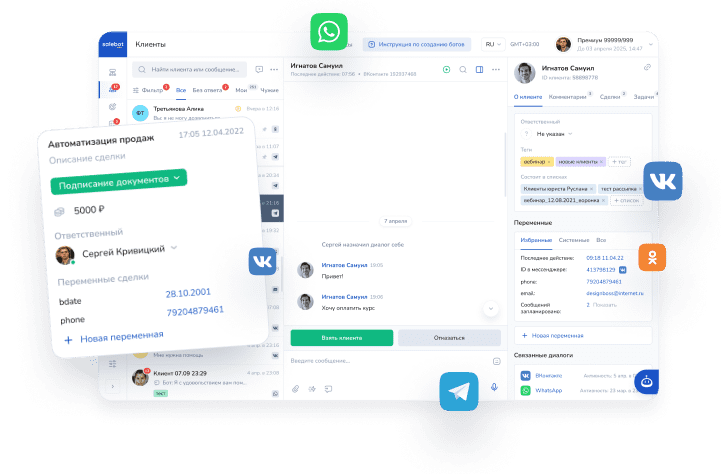
MaviBot.ai is an all-in-one platform that combines a visual builder, built-in CRM, AI responses, online booking, payment processing, and multi-channel support — helping thousands of businesses automate client interactions efficiently.
Why Businesses Choose Telegram Bots in 2026
Telegram bots offer clear advantages over traditional websites, email, or other messaging apps:
- Instant reach to a highly engaged audience with open rates often exceeding 80%.
- Zero cost for the Telegram Bot API and hosting of basic bots.
- Ability to handle thousands of conversations simultaneously.
- Seamless integration with payments, CRM systems, and AI for natural conversations.
- Multi-channel support (Telegram + WhatsApp + website chat) from a single scenario.
- Significant reduction in operational costs while improving customer satisfaction.
Over 10 million bots are already active on Telegram, proving the platform’s maturity for business automation.
Who Will Benefit Most from This Guide?
This tutorial is ideal for:
- Small business owners and entrepreneurs
- Freelancers and consultants
- Coaches, course creators, and service providers
- E-commerce stores and online shops
- Agencies managing client communication
Whether you need simple lead collection or a full sales funnel with payments, the no-code approach works perfectly.
Key Features of MaviBot.ai
- Visual no-code builder — Drag-and-drop blocks to create complex conversation flows.
- Multi-channel support — Telegram, WhatsApp, and website live chat in one place.
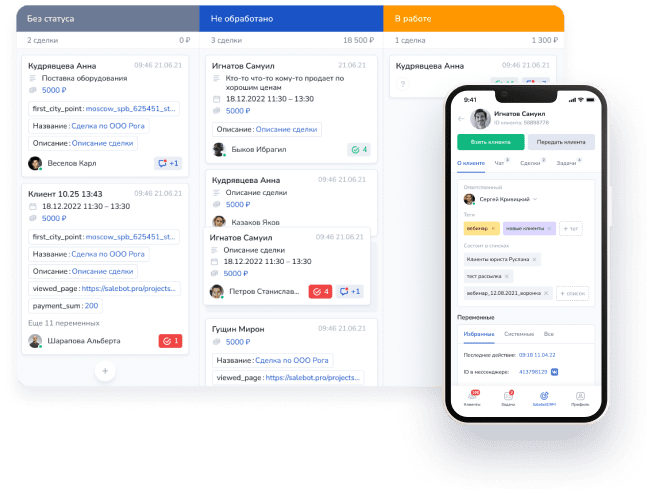
- Built-in CRM — Centralized inbox for all messages, leads, and deal tracking.
- AI-powered responses — Handle free-form questions with natural, intelligent replies.
- Business tools — Online booking calendar, payment buttons, broadcast messaging, and even a website/store builder.
Step-by-Step Guide: How to Create a Telegram Bot
Step 1. Registration (1–2 minutes)
Visit Mavibot.ai.
Click “Sign Up” and register using your email or a Facebook/Apple account.
Step 2. Creating a Project (2 minutes)
Click the “Create Project” button, enter a name for your project, and confirm.

You will be taken directly to the Builder — the visual scenario editor.
Step 3. Building the Conversation Scenario (10–15 minutes)
The first block is critical — it starts the entire conversation.
Create a block named “Start”. In the Trigger field, enter /start. In the Message tab, write a friendly welcome text.

In the block settings, choose “Create a block below”.

You can drag the new block anywhere for convenience.

In the connecting arrow, you can save the user’s response to a variable.

In the second block, write your message and request the user’s phone number using the special “Request phone number” button.

From the second block, create a third block that triggers once the user sends their phone number.
In the arrow leading to the third block, you can add a regular expression to validate the input (in case the user types the number manually):
Regular expression for phone number validation:
^(\+)?((\d{2,3}) ?\d|\d)(([ -]?\d)|( ?(\d{2,3}) ?)){5,12}\d$

Also create a Fallback block from the second block. This block will reply if the entered data does not match the phone format. No condition is required on the arrow to the Fallback block.

At this stage, your basic Telegram bot is nearly complete.
Step 4. Connecting the Bot to Telegram (3 minutes)
- Open @BotFather in Telegram (the official verified bot).
- Send the command /newbot
- Enter the bot’s display name
- Enter the username (Latin letters only, must end with bot or _bot, e.g., @my_business_bot)
- Copy the API token provided.
- In MaviBot.ai, go to the “Chats” section, select Telegram, paste the token, and click “Done”.
Step 5. Testing and Launch (2 minutes)
- Open your bot in Telegram (via the Chats section or by searching its username).
- Start the conversation by tapping “Start”.
- Test all flows thoroughly.

Your Telegram bot is now live and ready to serve your business!
What You Can Add Next
Once the foundation is set, easily expand your bot with:
- Automated sales funnels and reminders
- Subscription checks to your Telegram channel
- Direct payment collection inside the chat
- Advanced AI agent for handling any customer question
- Broadcast campaigns to your subscriber base
Best Practices After Launch
- Always obtain explicit consent before sending broadcasts to avoid spam flags.
- Provide a clear path to speak with a human operator.
- Monitor analytics regularly and optimize flows based on user behavior.
- Keep messages concise and mobile-friendly.
- Test on different devices and user scenarios.
Frequently Asked Questions (FAQ)
1. Can I really create a Telegram bot without any coding?
Yes. MaviBot.ai’s visual builder lets you create professional bots using simple blocks and arrows — no programming required.
2. Is creating a Telegram bot free?
Creating the bot via @BotFather and basic setup is completely free. MaviBot.ai offers a free plan for testing, with affordable paid plans for advanced features.
3. Do I need to pay Telegram for the bot?
No. The Telegram Bot API and @BotFather are free for everyone.
4. Can the bot accept payments?
Yes. You can add payment buttons and process transactions directly in the chat.
5. Does MaviBot support artificial intelligence?
Absolutely. You can enable AI responses for natural, context-aware conversations with customers.
6. Can one bot work across multiple channels?
Yes. Build once and deploy on Telegram, WhatsApp, and your website simultaneously.
7. What if the bot stops responding after connection?
Double-check the API token, ensure the bot is started with /start, and verify you haven’t blocked it. Contact support if the issue persists.
8. Can I edit the bot later or add new features?
Yes. All scenarios are fully editable at any time in the visual builder.
Ready to Launch Your Telegram Bot?
MaviBot.ai makes it incredibly easy to build a powerful, professional Telegram bot without technical skills. You get everything in one place: visual design, CRM, AI, payments, and automation.
Take the first step today — sign up for free at mavibot.ai and create your first bot in under 20 minutes.
If you need help or have questions, reach out via the live chat on the website or message @mavibotai_bot in Telegram. Our team is ready to assist you.
Start automating your business communication now and free up your time for what matters most. 🚀