





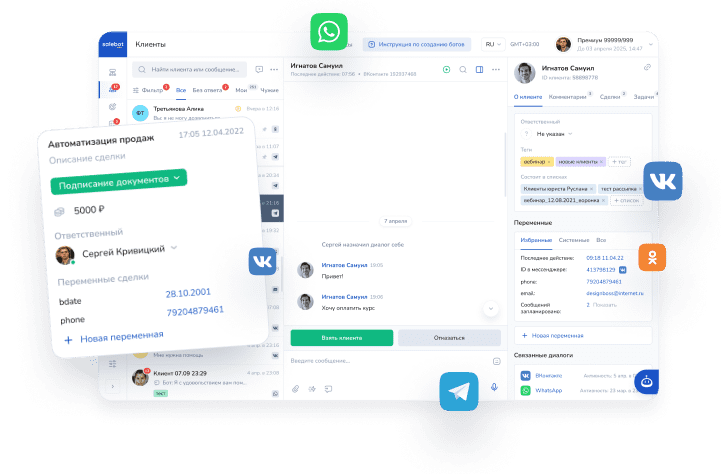
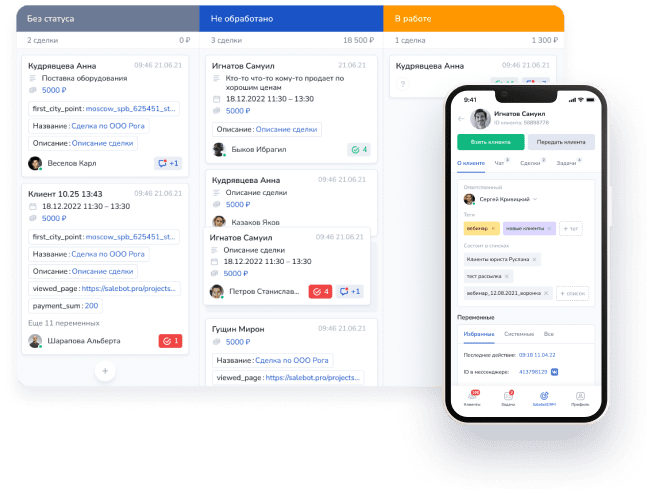


Every day, millions of people scroll through Telegram: they chat, read channels, subscribe to bots, and follow news. That makes it one of the most convenient places to build direct communication with your audience through broadcasts sent from your own Telegram bot.
With Mavibot, you can create a Telegram bot in about 10–15 minutes, connect it to the platform, set up a simple flow, and launch a bulk Telegram campaign to your subscriber base — all without coding. In this guide, you will learn how it works, what you can achieve with Telegram broadcasts, and how to configure a campaign in Mavibot step by step.
How Telegram Campaigns via Bots Work
Telegram is strict about spam, so sending mass private messages to users who did not give permission is not allowed. The right way is to communicate through a chatbot that users join voluntarily and from which they explicitly agree to receive messages.
The basic flow looks like this:
- A user opens your chatbot and taps “Start” / “Begin”.
- The bot sends a welcome message and can request permission to receive broadcasts.
- The contact is added to your Mavibot database, where you can assign tags, capture variables, and create segments.
- In the campaigns section, you send a broadcast to the selected audience.
This approach keeps you compliant with Telegram rules while still giving you full control over who receives which message and when.
Why Companies Should Use Telegram Broadcasts
1. High open rates and fast reactions
Bot messages land directly in a private chat and don’t disappear into “spam folders” the way emails often do. In most markets, users open bot notifications far more frequently than emails and usually react much faster.
2. Personalized offers and smart segmentation
In Mavibot you can divide your audience into segments using tags, funnel stage, lead source, and behavior. This means you can send different broadcasts to paying customers, leads, webinar attendees, inactive users, and many other groups instead of blasting everyone with the same message.
3. Automated funnels instead of single blasts
A campaign can trigger not just one message, but an entire sequence of blocks with delays and branches. You can build a mini-funnel that guides a user from awareness to purchase: introduction → value → choice → order/payment.
4. More capabilities than channel posts
Telegram channel posts are great for reach and brand building, but they are not truly personal. With a chatbot and broadcasts via Mavibot, you can communicate one‑to‑one, ask qualifying questions, and switch the conversation to a human agent when needed.
What You Can Do with Telegram Campaigns
Using a Telegram bot and Mavibot, you can cover many marketing and service tasks.
- Announce promotions and sales (discounts, special offers, stock clearances).
- Promote new products, services, lessons, launches, and feature updates.
- Send reminders for webinars, consultations, appointments, and live events.
- Recover abandoned carts or unfinished orders.
- Deliver educational content: short lessons, tips, checklists, nurture sequences.
- Collect feedback and satisfaction surveys right inside the bot.
Step 1. Create a Telegram Bot via BotFather
First, you need a Telegram bot that will be used as the sender for your campaigns.
- Open the Telegram app.
- Search for the official @BotFather bot.
- Press Start or send the command /start.
- Choose the command /newbot.
- Provide:
- a bot name (visible to users),
- a unique username (the bot address) ending in bot (for example, my_business_bot).

After that, BotFather will send you an API token — a long string of characters. This token connects your bot to Mavibot, so keep it safe because the integration will not work without it.
Step 2. Connect the Telegram Bot to Mavibot
Next, link your newly created bot to Mavibot so you can build flows and run campaigns.
In your Mavibot project:
- Go to the channels/messengers section.
- Select Telegram.
- Paste the API token you received from BotFather.
- Save and wait for the status to show successful connection.

Once connected, the bot appears in your list of active channels and becomes available for flows, broadcasts, and automations.
Step 3. Build a Simple Flow in the Mavibot Builder
Before sending a bulk campaign, it helps to create a simple flow of blocks so that your broadcast becomes the entry point to a mini-funnel.
In the Mavibot builder:
- Create a new flow for your Telegram bot.
- Add the first block with a welcome message, such as: “Hi! We’ve got something new for you.”
- Add a second block with your main offer, for example: “We’ve upgraded our features” or “We’ve prepared a special bonus for you.”
- Connect the first block to the second with an arrow (transition).
- Set a delay between blocks — 5 seconds, 10 minutes, 1 hour, and so on.
This way:
- The user receives the first message instantly.
- The second message is sent automatically after the chosen delay.
- The system runs without manual work and becomes a basic auto-funnel.

You can extend the flow with more blocks: extra details, option choices, contact collection, or handoff to a live agent.
Step 4. Creating a Telegram Campaign in Mavibot
Mavibot offers two main ways to start a campaign in messengers, including Telegram. You can either use the campaigns section directly or initiate a campaign from a specific block in your flow.
Method 1. From the Campaigns Section
Use this when you need a one‑time or recurring broadcast for a clearly defined audience.
- In your Mavibot project, open the Messenger broadcasts section.
- Click Add campaign.
- Configure the campaign using the tabs:
- In Recipients, choose who should get the message (all subscribers, Telegram only, lists, CRM stages, flow blocks, variables, etc.).
- In Message, add text, buttons, and attachments; preview and use test send if needed.
- In Sending, set time and mode (send now or schedule; if required, split the campaign into parts with offsets and batch sizes).

This method is convenient when your broadcast is a standalone activity and you need fine‑grained control over the recipients using filters, lists, and variables.
Method 2. From a Flow Block
Alternatively, you can create a campaign directly from a flow block without leaving the builder. This works well when you want to trigger a sequence for contacts currently in a particular step or start a new branch from that point.
- Open the desired flow in the funnel builder in Mavibot.
- Select the block from which the campaign should start.
- In the block settings, choose “Create messenger campaign”.
- You will be redirected to the campaigns section, where you can set filters and schedule the send exactly as in Method 1; the message tab will already contain the content of the selected block.
When launching campaigns from a block, keep in mind:
- If the campaign starts from a stateful dialog block, the state of those customers will change — contacts at other stages can be “moved” into this block and continue the flow from there.
- If you cannot interrupt users in their current flow, use stateless blocks and build a separate branch for campaigns so that the main funnel logic stays intact.

How to Make Telegram Campaigns More Effective
Launching a campaign is technically simple; results depend on your message, segmentation, and timing.
1. Strong first lines
Make the first 1–2 lines clear and attention‑grabbing: say what you offer and why it matters right now. Examples: “We’ve launched a new analytics module”, “Only 3 days with 30% off”, “We’ve prepared a list of ideas for your business.”
2. Sending time
Test different days and times: for B2B, weekday daytime often performs better; for B2C, evenings and weekends may win. Compare results in Mavibot analytics and note your top‑performing time slots.
3. Personalization and segmentation
Avoid sending identical messages to everyone. Use Mavibot’s tools to segment by interests, funnel stage, purchase history, and previous campaign behavior. Add a personalized greeting with the user’s name (if you have that variable) and tailor offers to each segment.
4. Frequency and user expectations
Do not overwhelm subscribers: it is better to send regular, valuable campaigns than frequent but empty messages. Watch unsubscribes and blocks after broadcasts and adjust frequency and format accordingly.
Sample Campaign Scenarios in Mavibot
Below are some typical scenarios you can implement with the logic described above.
Promotion for existing customers
Segment: users with the “customer” tag.
Flow:
- Block 1 — promotion announcement and deadline.
- Block 2 — details and a “Get discount” button.
- Block 3 — 24 hours later, a reminder for those who did not click.
Webinar or event reminders
Segment: users tagged as “webinar registered”.
Flow:
- Broadcast one day before the event.
- Broadcast one hour before.
- Broadcast 5 minutes before with a direct link to the stream.
Short educational series
Segment: subscribers interested in a specific topic.
Flow:
- A series of 3–5 messages with useful tips or mini‑lessons.
- At the end — an offer (product, course, consultation, or private community).
Analyzing Campaign Results in Mavibot
To make each new campaign perform better than the previous one, you need to track numbers and user behavior.
Pay attention to:
- Clicks on buttons and links.
- Replies and dialogues started after the broadcast.
- Conversions to order, payment, or signup.
- Spikes in unsubscribes and blocks after certain types of campaigns.
Over time, you will develop internal benchmarks and understand which formats, offers, and sending times work best for your audience in Mavibot.
FAQ: Telegram Campaigns in Mavibot
Do I need programming skills to send campaigns?
No. Every step — from connecting the bot to configuring the logic — is handled through Mavibot’s visual interface with blocks and arrows, without code.
Can I send a campaign only to part of my subscribers?
Yes. You can filter your audience by tags, funnel states, lead source, and variable values, and send different messages to different segments.
How long does it take to launch the first campaign?
If your bot is already created and connected, building a simple flow and sending your first Telegram campaign via Mavibot usually takes around 10–15 minutes.
Will my campaigns be considered spam?
If you grow your base via the bot with explicit consent, provide clear value, and maintain a reasonable sending frequency, users are more likely to see your messages as a helpful communication channel rather than spam.
Launch Your First Telegram Campaign with Mavibot
Create a Telegram bot, connect it to Mavibot, build a simple flow, and send your first Telegram campaign for your business today. In just a few minutes, you can set up a basic broadcast, test the response, and then integrate Telegram campaigns into your automated marketing and sales system.